
Quick answer: If registration shows an SMS Fee payment screen, you can first try Telegram X from an official source. When that attempt does not request payment and the verification code arrives successfully, you can continue without paying, then sign in on your other devices. This depends on the actual verification flow; it is not a guarantee for every +86 number.
This GetTGAPI tutorial at gettgapi.com connects the payment prompt, registration, additional device login and logout steps.
What the SMS Fee screen means
The following illustration was cropped from a user-provided screenshot to remove its phone status bar.
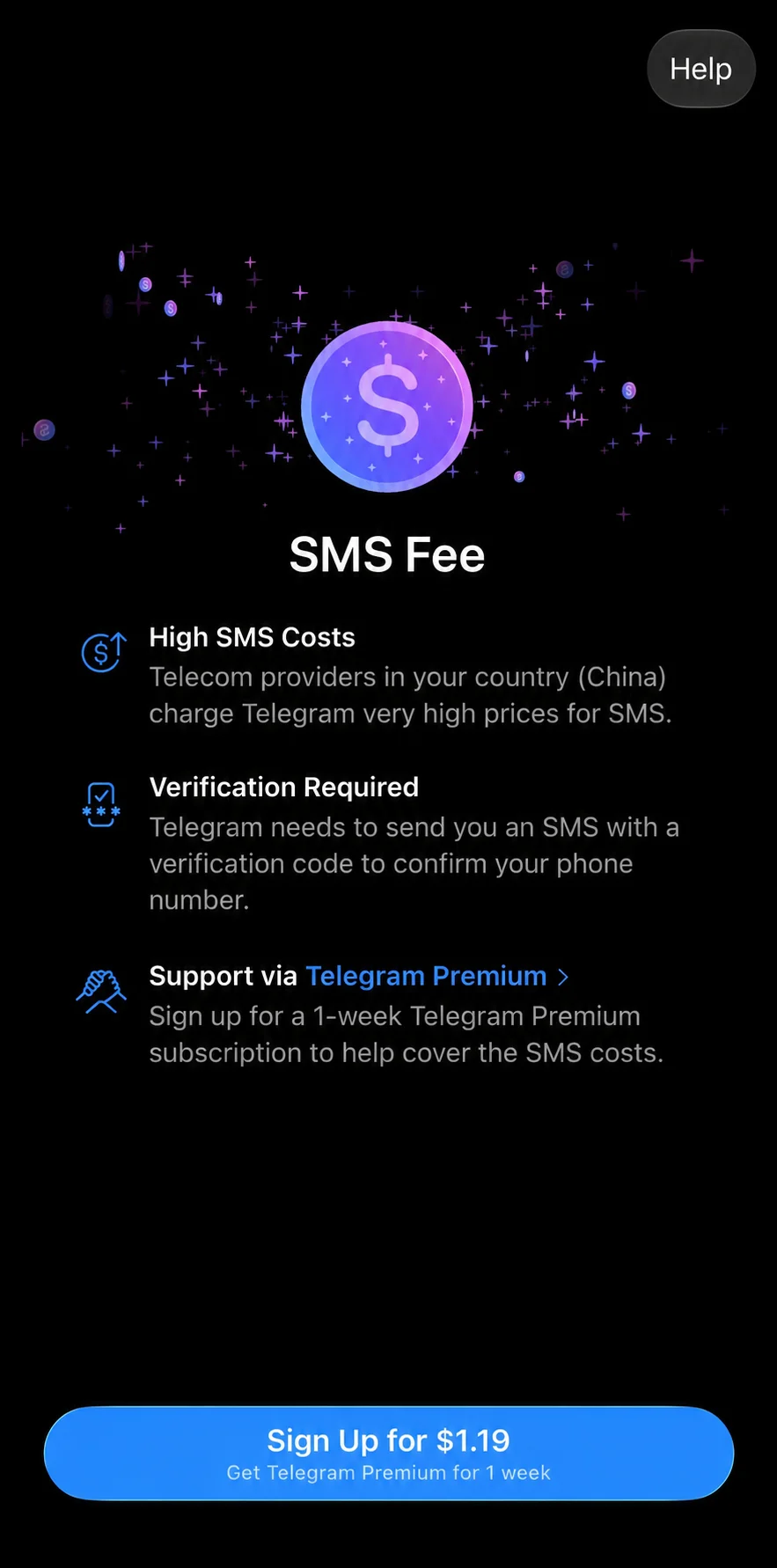
The screen describes high SMS delivery costs, the need to verify the phone number, and a one-week Premium purchase option. The button in this particular screenshot displays $1.19. This is the amount shown for that purchase, not a universal charge for all numbers or a GetTGAPI service fee. Telegram has an official paid-verification branch. Authorization documentation
Try the Telegram X route
This route follows the user's report of trying registration in Telegram X before signing in elsewhere. It is a practical option to try, rather than a promise that changing clients removes every payment requirement.
- Install Telegram X from Google Play, or use the official GitHub APK direct download.
- Enter a phone number you control and can receive messages on, using its correct international country code.
- Follow the current prompts. If email verification appears, use an email address you can continue to access.
- When the client explicitly says the code was sent by SMS, wait for that attempt's code on the phone holding the number.
- Submit the code, complete any required profile details, and confirm that you can enter your account.
Read the download and registration walkthrough for the detailed sequence. If Telegram X also requires payment, rate-limits the attempt or does not deliver a code, follow the actual result and avoid repeatedly switching clients to request more codes.
Sign in on another device
The account created in Telegram X belongs to the same phone number used in other Telegram clients. Keep Telegram X signed in while you enter that number on your own phone or computer.
The new login code may arrive as an official service message inside Telegram X, by SMS or through another available channel. Check the method shown by the new client. Complete the login and inspect the device list. Device login guide
Log out after confirming the new device
Once your intended device is signed in and usable, log out of the current account in Telegram X. Logging out, uninstalling the app and deleting the account are different operations. Logout guide
If an email was linked for login during registration, retain access to it. Logging out does not automatically remove its purpose.
Apply for API credentials after registration
Creating a Telegram account and obtaining API ID / Hash are separate steps. An existing account can follow the official API application guide.
For API ERROR messages or other application issues, contact GetTGAPI support at https://gettgapi.com/help#contact. If you already have an API application access code, use https://gettgapi.com/redeem. GetTGAPI provides API application assistance; this tutorial describes using Telegram X on your own devices.